Type it and forget it
The whole interaction is one keystroke, a sentence, and Enter. Nothing to file, sort, or tidy afterwards.
Available for Apple Silicon Mac
One shortcut. One task. Back to what you were doing.
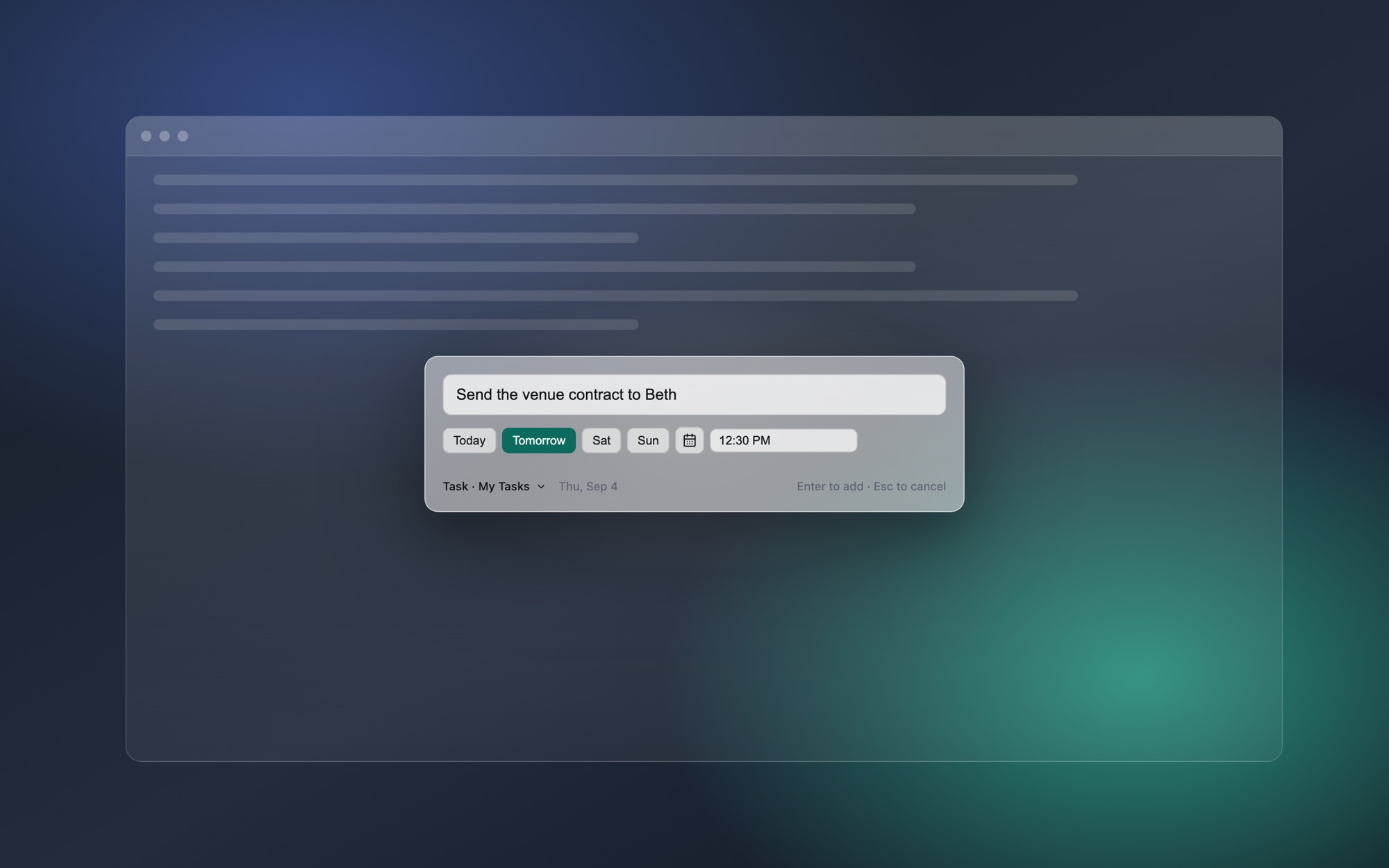
Press Ctrl+Space and a small glass box appears over whatever is on screen. Type what needs doing, pick a date, choose the list or calendar it belongs in, and press Enter. SnapTask files it in Google Tasks or Google Calendar and disappears.
What it looks like
The capture box opens on the display your cursor is on, takes a sentence and a date, and names exactly where it is going before you press Enter.
What it does
The whole interaction is one keystroke, a sentence, and Enter. Nothing to file, sort, or tidy afterwards.
Every capture shows exactly where it is going before you commit, and you can send this one somewhere else without changing your default.
Pick from the task lists and calendars your Google account actually has, rather than whichever one the app decided was primary.
If you do not set a date, the task has no date. SnapTask will offer one it found in text you pasted, but it will not guess on your behalf.
Copy a ticket title or a line from an email first and the box opens pre-filled. Reading the clipboard needs no permission, and SnapTask never writes to it.
Google Tasks discards the time of day. If you set one and file it as a task anyway, SnapTask keeps it in the notes rather than letting it vanish.
Permissions
Most capture tools of this kind ask for Accessibility access so they can read your selected text, and Automation access so they can drive other apps. SnapTask does neither. You type the task yourself, which means there is nothing to read, nothing to automate, and no permission prompt.
It does not simulate keystrokes, and it never writes to your clipboard. The clipboard is read once, when the box opens, only to offer a starting point you can overwrite or delete.
Your Google connection uses the standard sign-in flow in your own browser. SnapTask never sees your password, and the token it receives is stored in the macOS Keychain rather than in a file. Nothing you capture is sent to Envelopes.
How it works
Price
SnapTask is a small utility rather than a product. There is no licence key, no activation, no trial limit, and no account to create with us. You connect your own Google account and that is the whole setup.
Free
No licence, no subscription, no account
Download for Apple Silicon Apple Silicon Mac first · Intel Mac and Windows planned · Requires a Google accountNeed help?
Email support and mention SnapTask. We can help with the Google connection, the keyboard shortcut, or where your captures ended up.